
How to Create an Org Chart on Mac: The Ultimate Guide
An organizational chart, or org chart, is an essential map of your team’s hierarchy. While macOS users have tools like Apple Keynote or Microsoft PowerPoint, manually dragging boxes and managing line connectors becomes a nightmare as teams scale. Let's look at how to build beautiful, automated org charts natively on macOS.
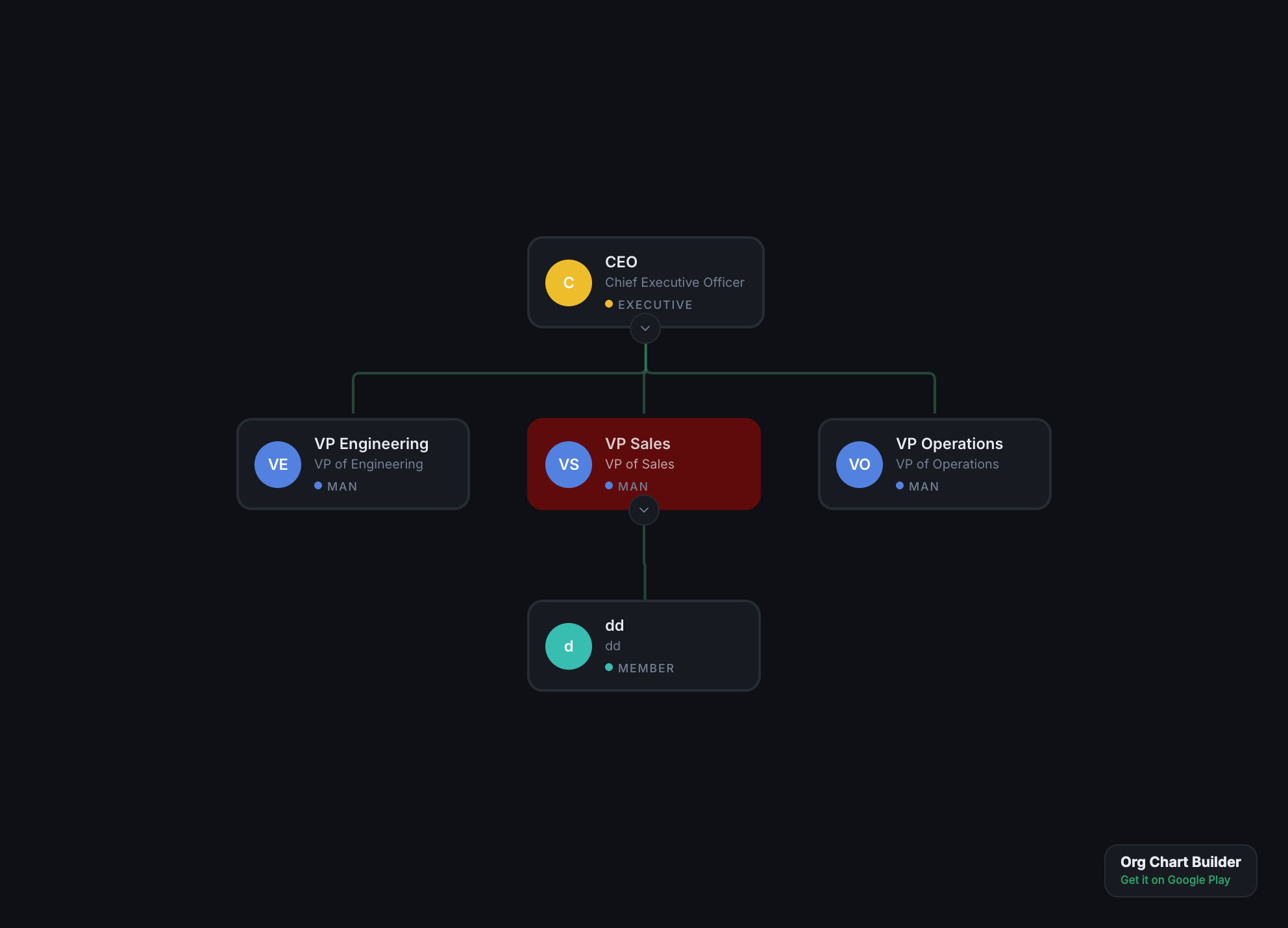
Why Traditional macOS Diagram Tools Fall Short
Mac users often resort to classic vector drawing tools or diagramming apps. While they work fine for a static 5-person chart, they fail when:
- Your team structure is dynamic: Promoting a team member requires manually disconnecting and moving lines and cards.
- Design alignment is tedious: Keeping consistent spacing, fonts, and borders across dozens of roles takes hours.
- Export options are limited: You cannot easily output high-resolution files or animated walkthroughs.
To solve this, macOS users need an automated organizational chart maker like YourOrgTree. It does the layout heavy lifting, runs natively with full Apple Silicon optimization, and keeps your data completely secure.
Apple Silicon & Notarization
YourOrgTree is built natively for macOS, featuring full optimization for Apple Silicon (M1/M2/M3). The app is fully signed with an Apple Developer certificate and notarized by Apple's servers, ensuring a secure and warnings-free setup on macOS.
Step-by-Step: Creating an Org Chart on macOS
Building a tree with YourOrgTree on Mac is fast and automated. Follow these simple steps to go from a raw dataset to a beautiful organizational chart in minutes.
1Download YourOrgTree for Mac
First, download the signed macOS build. You can download the Apple Silicon DMG or PKG installer package directly from the Downloads page . Drag the app to your Applications folder and launch it.
2Establish Your Top-Level Role
Create the root node of your hierarchy (typically the CEO, Founder, or Board President). Enter their name, job title, department, contact information, and upload their profile picture.
3Import CSV to Build Automatically
Avoid manual data entry by using the built-in CSV importer:
- Create a CSV with three mandatory columns:
Id,Name, andReportsTo. - Set the
ReportsTovalue for each team member to theIdof their supervisor. - Drag the CSV file into YourOrgTree. The app automatically calculates reporting lines and positions cards instantly.
4Customize layout theme and styling
Aesthetics clarify organization roles. Change styles in the customization panel:
- Node Styles: Card borders, avatar sizing, shadows, and department highlight badges.
- Layout density: Vertical and horizontal node spacing to comfortably fit larger organizations.
- Color Coding: Set different colors for different branches (e.g. Product, Marketing, Sales) to easily identify department splits.
Export and Share from Your Mac
Once your org chart looks perfect, YourOrgTree provides premium ways to share and export it:
- Animated MP4 Video: Generate an automated panning/zooming walkthrough video tours of your team hierarchy.
- High-Resolution PNG & PDF: Create vector PDFs or crisp PNG images perfect for onboarding slide decks.
- Interactive Web Link: Publish the tree as an interactive web page. The link is viewable on any device (safari, mobile, windows) with no installation.
Conclusion
Building organizational charts on Mac doesn’t have to be a manual formatting chore. By choosing a native, Apple Silicon optimized utility like YourOrgTree, you gain the ability to build massive company structures instantly via CSV imports and export presentation-ready animations while keeping your data fully secure.